Screenshot Editor
The Somake AI screenshot editor adds backgrounds, device frames, and annotations to any screenshot in seconds. Describe your use case and download a share-ready image.
AI Screenshot Editor: Turn Raw Screenshots into Share-Ready Visuals
Sharing a raw screenshot often means sharing clutter — but the AI Screenshot Editor on Somake turns it into a clean, presentation-ready image in seconds. The AI Screenshot Editor on Somake lets you drop in a screenshot and walk away with a polished, presentation-ready image in seconds. Whether you're writing a tutorial, filing a bug report, or posting to social media, the AI screenshot editor handles framing and annotation automatically.
How to Use
Upload the screenshot you want to enhance.
Describe the context in the prompt — set your background, choose a device frame, and specify the use case (e.g., tutorial, social post, product demo).
Add your preferred annotation style to highlight what matters — arrows, callouts, numbered steps, or minimal clean marks.
Download the finished image and share it directly.
Key Features
Output Matches Your Use Case Automatically
The editor adjusts the overall treatment based on how you plan to use the image. A social-ready screenshot gets different polish than one headed for internal documentation or a press kit. Tell it the use case, and the output matches the context.
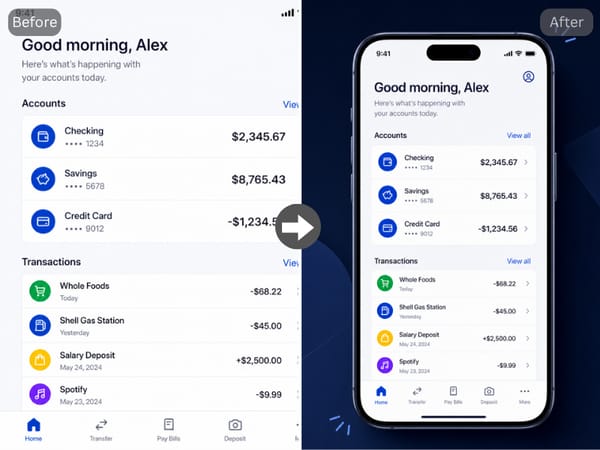
Instant Background & Device Frame Styling
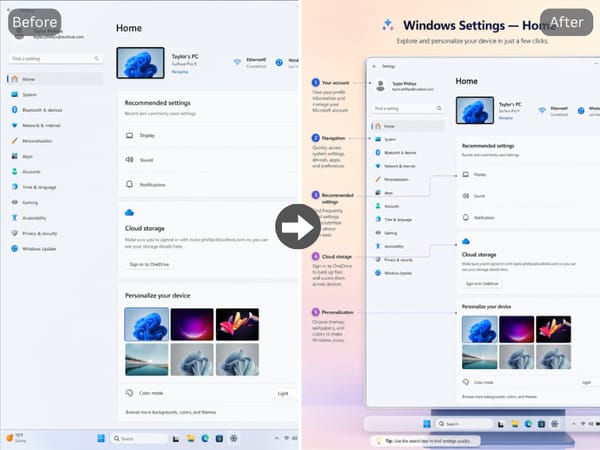
Drop in a plain screenshot and the editor wraps it in the right visual context automatically. Pick a gradient, a soft blur, a clean white studio, or a branded dark surface — then frame it in a phone, browser, or tablet shell. The result looks deliberate — not like a quick grab.
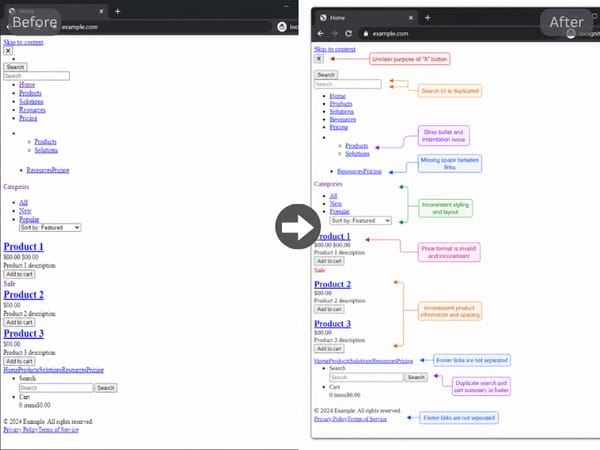
Annotation That Directs Attention
Describe what you need in the prompt instead of switching to a separate design tool. The AI screenshot editor places callouts, numbered markers, or minimal pointer lines exactly where they help most — useful for tutorials, product walkthroughs, and bug reports.
Use Cases
Product Tutorials and Onboarding Docs
Walk users through any feature with screenshots that are clearly framed, annotated, and visually consistent from step one. Add step numbers and callouts in the prompt instead of spending time in Figma or Canva. When the tutorial is done, you can animate key frames and turn screenshots into a short walkthrough video with Somake's image-to-video generator.
Social Media and Community Posts
A polished device-framed screenshot with a clean background stands out in a timeline where raw grabs get ignored. Useful for product launches, feature announcements, and indie developer updates — drop the finished image straight into your post.
Bug Reports and QA Documentation
Annotated screenshots with clear markers and labels make bug reports easier to act on. Highlight the broken element, note the expected vs. actual state, and share an image that needs no verbal explanation alongside it.