The best Instagram Reel size in 2026 is 1080 x 1920 pixels with a 9:16 aspect ratio. Use MP4, H.264, 30 FPS, and keep important text away from the top 220 px and bottom 450 px so it is not covered by Instagram's interface.
You finished editing your Reel. It looked sharp. You uploaded it — and either the text got clipped by the caption bar, your cover looked cropped on the grid, or the whole thing came out softer than expected. None of that was a content problem. It was a specs problem.
This guide gives you every number you need, explains why the new profile grid changes the cover photo game, and shows you the export settings that survive Instagram's compression without going blurry.
Quick Answer
| Spec | Recommended Setting |
|---|---|
| Reel size | 1080 x 1920 px |
| Aspect ratio | 9:16 |
| Cover size | Upload 1080 x 1920 px |
| Grid preview crop | 3:4 |
| Feed preview crop | 4:5 |
| Safe zone | Avoid top 220 px, bottom 450 px, and right edge |
| Format | MP4 or MOV |
| Codec | H.264 |
| Frame rate | 30 FPS |
| Max file size | 4 GB |
| Recommended duration | Under 90 seconds |
Video Dimensions
The right Instagram Reel size is 1080 × 1920 pixels at a 9:16 aspect ratio. That's the same full-HD vertical format used by TikTok and YouTube Shorts — it fills every pixel of a phone screen in portrait mode.
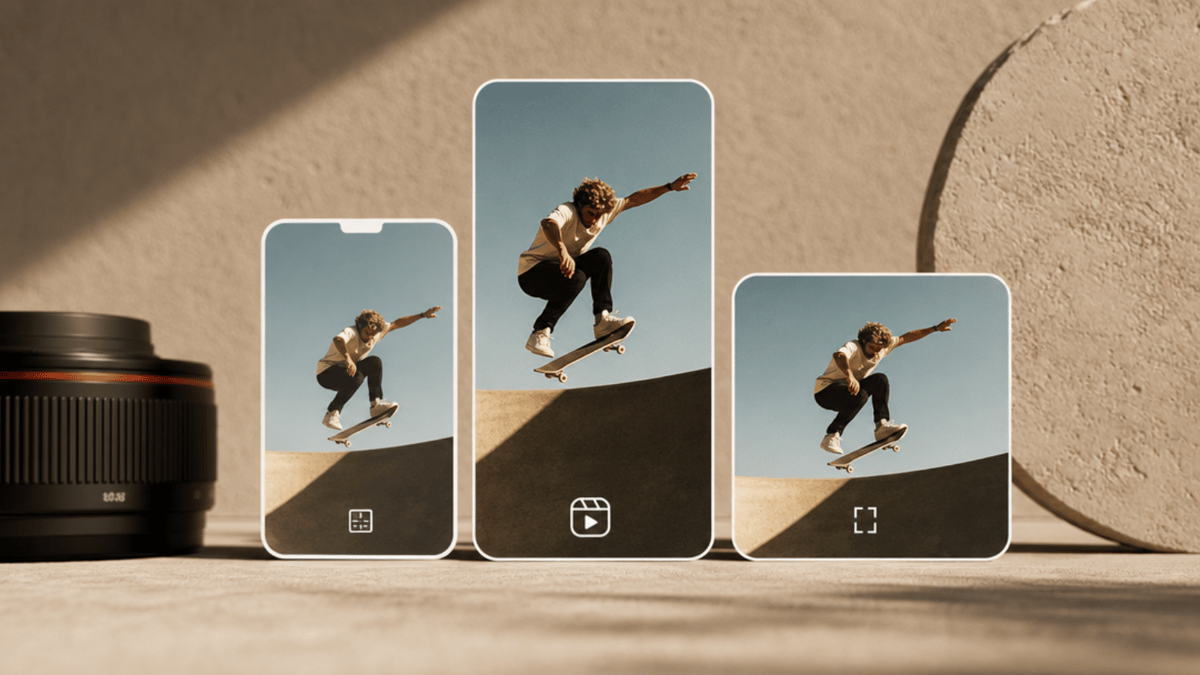
Shooting and exporting in 9:16 from the start is the only way to get full-screen display. If your source footage is a different ratio, here's what happens:
16:9 (horizontal): Instagram adds black bars above and below. The video shrinks to a narrow strip in the middle of the screen.
4:5 (portrait feed): Technically accepted, but Reels cropped to 4:5 in the feed preview. You lose the top and bottom of your frame.
1:1 (square): Cropped on both sides when viewed full-screen.
Always originate content in 9:16 when shooting for Reels. Cropping down from a wider format always means losing something.
One thing most guides miss: In 2025, Instagram finalized a new vertical profile grid. Your profile now previews all content at a 3:4 ratio (1080 × 1440 px) instead of the old 1:1 square. That changes how your Reel's cover photo looks in your grid — more on that below.
Cover & Thumbnail
Instagram's official recommended cover size is 420 × 654 px (1:1.55 ratio). In practice, uploading at 1080 × 1920 px (9:16) gives sharper results — Instagram scales it down automatically, and the higher resolution holds up better on modern screens. Use 1080 × 1920 as your working size; treat 420 × 654 as the minimum floor.
Your cover shows up in several places, each cropped differently:
Reels tab on your profile: shows the full 9:16 frame — use 1080 × 1920 px
Main profile grid: crops to 3:4 (since the Jan 2025 grid update)
Profile feed thumbnail (when your Reel appears in the main feed): displayed at 1010 × 1010 px (1:1) — keep your subject centered so this crop works too
This matters. A cover photo that looks great at full height can still have your subject's face half-cropped in the grid view.
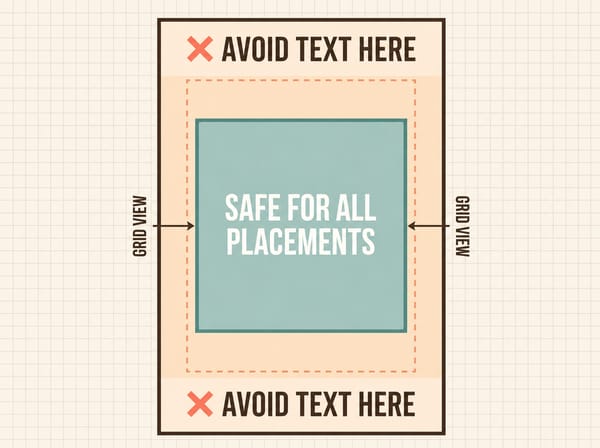
The practical rule: Design your cover at 1080 × 1920, but keep every important element — faces, text, your product — inside the central 1080 × 1080 square. That area survives every crop Instagram throws at it. If your cover image is low resolution to begin with, upscale it first before uploading — a blurry cover is harder to fix after the fact.
For text on your cover, avoid the top and bottom 480 pixels. That space gets cut off in 3:4 grid display.
You have two ways to set your cover:
Pick a frame from the video itself during the upload flow
Upload a custom image from your camera roll (tap "Edit cover" on the share screen)
Safe Zones
Instagram's UI overlays sit on top of your video. If you put important content under them, it disappears.
The three zones to avoid:
| Zone | Pixels to clear | What covers it |
|---|---|---|
| Bottom | 450 px | Caption, username, audio label |
| Top | 220 px | Profile photo, "following" indicator |
| Left / Right | 35 px each side | Side margins |
The right-side engagement buttons (like, comment, share) sit within the 35 px margin zone but extend inward — keep any critical text or CTAs away from the right edge entirely.
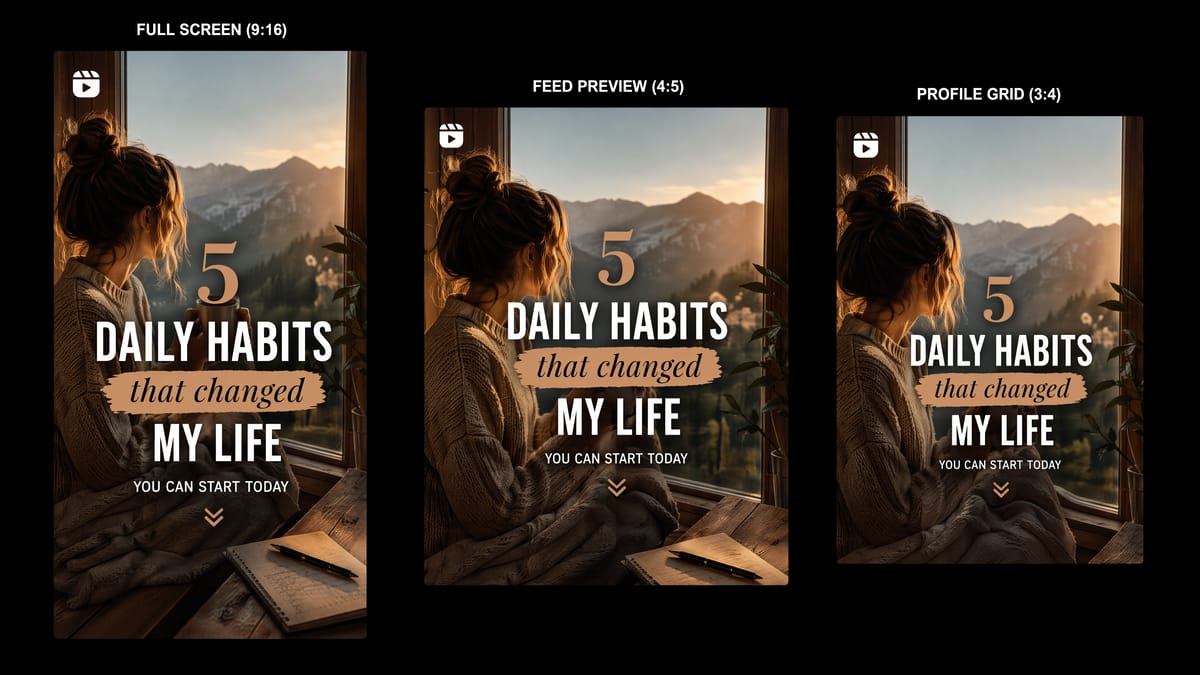
The simplest rule: keep all text and key visuals in the center of your frame, clear of the top 220 px and bottom 450 px. That content survives full-screen view, feed preview (4:5), and the grid (3:4) without getting cut.
Your Reel also shows differently depending on where the viewer encounters it:
Reels tab / Explore / full-screen tap: full 9:16 frame
Feed scroll: cropped to 4:5 — top and bottom of your frame get cut
Profile grid: cropped to 3:4 (new grid) or 1:1 (old grid, still seen on some accounts)
Design for 9:16 with safe zones, and the content holds up everywhere.
File Specs
| Setting | Value |
|---|---|
| Format | MP4 (preferred), MOV |
| Max file size | 4 GB |
| Codec | H.264 (avoid H.265/HEVC — causes upload glitches) |
| Audio codec | AAC |
| Min duration | 3 seconds |
Instagram accepts files up to 4 GB, but uploading near that ceiling rarely helps. Instagram re-encodes every upload. A cleaner, well-compressed source file survives that process better than a massive raw export.
Duration
Instagram Reel duration in 2026 is genuinely confusing because the limits differ based on how you create the Reel.
In-app recording: Most accounts can record up to 3 minutes directly in the Instagram camera. Some accounts still see a 90-second cap — that's a gradual rollout, not a bug.
Upload from camera roll: Any video up to 20 minutes is accepted as a Reel — this is the confirmed official limit.
What actually matters for reach: Duration caps are a technical ceiling, not a performance recommendation. Instagram's algorithm sends shorter Reels to more people. Instagram states directly: "Reels over 3 minutes will not be recommended to new audiences." Under 90 seconds is the sweet spot if reaching new people is the goal.
If your content genuinely needs more time — a tutorial, a how-to — up to 20 minutes is available for upload. Every second still needs to earn its place.
Export Settings
Blurry Reels almost never come from using the wrong dimensions. They come from Instagram's compression hitting a file that was already compressed once or twice during editing.
Every time you export a video file, the encoder discards data. When you export again from that export, it compresses an already-compressed file. By the time Instagram applies its own pass, the detail is gone.
Export once, from the best source file you have, using these settings:
| Setting | Recommended value |
|---|---|
| Format | MP4 |
| Codec | H.264 |
| Resolution | 1080 × 1920 px |
| Frame rate | 30 FPS |
| Bitrate | 3,500–5,000 kbps |
| Audio | AAC |
Why 30 FPS instead of 60? Instagram compresses 60 FPS files more aggressively than 30 FPS. For most content — talking head, lifestyle, product — the result actually looks softer at 60 FPS after Instagram's encoding. 60 FPS is worth considering for fast sports or action content where motion clarity matters.
Why H.264 instead of H.265? H.265 (HEVC) produces smaller files at equivalent quality, but it causes frequent upload errors and processing failures on Instagram. H.264 is the safe choice.
One more setting worth checking in the Instagram app: go to your profile → menu → Your app and media → tap Media quality → toggle on Upload in high quality. This tells Instagram to prioritize sharpness over upload speed.
Starting from a high-quality source matters. If you're building video from images, you can animate them directly into a Reel-ready 1080×1920 file. Prefer to start from scratch? A text-to-video tool skips the resize step entirely.
Cross-Platform Sizing
TikTok and YouTube Shorts both use the same 9:16, 1080 × 1920 px format. If you're posting across all three, a single vertical master works.
| Platform | Best Size | Aspect Ratio | Notes |
|---|---|---|---|
| Instagram Reels | 1080 x 1920 px | 9:16 | Most restrictive safe zones |
| YouTube Shorts | 1080 x 1920 px | 9:16 | Similar vertical format |
| TikTok | 1080 x 1920 px | 9:16 | Check bottom caption overlap |
Instagram has the most restrictive safe zones of the three. Content that looks clean on Instagram will look fine on TikTok and Shorts. Design for Instagram first, and cross-platform distribution is straightforward.
One exception: TikTok's UI button placement differs slightly from Instagram's. The right-side button stack sits at roughly the same height, but TikTok's caption overlaps the bottom of the frame more heavily. If you're adding bottom-aligned text, check it on both platforms before posting.
If you need a static banner to pair with your Reels content, you can create an Instagram banner at the right dimensions automatically.
FAQs
Key Takeaways
Video: 1080 × 1920 px, 9:16, MP4, H.264, 30 FPS
Cover: 1080 × 1920 px — keep key elements in the center 1080 × 1080 area to survive the 3:4 grid crop
Safe zones: Bottom 20%, right 10%, top 10% — keep text and faces clear of all three
Duration: Under 90 seconds for discovery; up to 20 min max for intent-driven audiences (Instagram confirmed)
Blurry Reels fix: Export once from source, H.264, 3,500–5,000 kbps — the format matters less than limiting compression passes