The best YouTube Shorts aspect ratio in 2026 is 9:16, with a recommended size of 1080 x 1920 pixels. Use MP4, H.264, 30 FPS, and keep text away from the top, bottom, and right-side UI zones so captions and CTAs stay visible.
You uploaded a vertical video under three minutes. It didn't show up in the Shorts feed.
The most likely cause: wrong aspect ratio. Or a ratio close enough that your editor accepted it — but not close enough for YouTube to classify it as a Short.
This guide gives you the exact spec, explains what breaks when you get it wrong, and shows how to set it up in every major editor.
Quick Answer
The YouTube Shorts aspect ratio is 9:16. The recommended resolution is 1080 × 1920 pixels (Full HD in portrait orientation).
That's the one number you need. Everything below explains why it matters and how to use it.
| Spec | Recommended Setting |
|---|---|
| Aspect ratio | 9:16 |
| Best size | 1080 x 1920 px |
| Minimum size | 720 x 1280 px |
| Max upload resolution | 2160 x 3840 px |
| Format | MP4 recommended |
| Codec | H.264 |
| Frame rate | 30 FPS |
| Max duration | 3 minutes |
| Recommended duration | 15-45 seconds |
| Safe zone | Keep key text away from top, bottom, and right edge |
What Aspect Ratio Means
Aspect ratio is the proportional relationship between a video's width and its height. It's written as two numbers separated by a colon.
16:9 means 16 units wide and 9 tall — the landscape format used for standard YouTube videos, TV, and most monitors.
9:16 is the same ratio flipped vertical — 9 units wide, 16 tall. It matches the orientation of a smartphone held upright.
Exact Specs
Here are the confirmed YouTube Shorts specifications for 2026:
| Setting | Value |
|---|---|
| Aspect ratio | 9:16 (vertical) |
| Recommended resolution | 1080 × 1920 px |
| Minimum resolution | 720 × 1280 px |
| Maximum upload resolution | 2160 × 3840 px (4K) |
| Playback cap | 1080p (YouTube downscales 4K; no quality benefit to uploading at 4K) |
| Max duration | 3 minutes / 180 seconds (updated October 15, 2024) |
| Recommended duration | 15–45 seconds for highest completion rates |
| File format | MP4 (recommended); MOV and WebM supported |
| Video codec | H.264 |
| Audio codec | AAC, 128 kbps or higher |
| Bitrate | 8–25 Mbps for 1080p |
A few notes worth reading, not just skimming:
Uploading at 4K wastes time and storage. YouTube serves every Short at a maximum of 1080p regardless of source resolution. Export at 1080 × 1920 and move on.
The 3-minute limit is real and often missed — YouTube extended it from 60 seconds in October 2024. Several articles still show the old limit. If you're seeing conflicting information, the 3-minute figure is current as of 2026.
The minimum resolution of 720 × 1280 is a floor, not a target. Videos below 720p upload and may qualify as Shorts, but they look visibly soft on modern phones. Pixelation is one of the fastest ways to lose a viewer.
Why 9:16?
The reason is obvious once you think about it: that's how people hold their phones.
A 9:16 video fills the entire screen when viewed in portrait mode. There are no black bars. No empty space. The viewer's full attention is on your content.
The format also creates one less reason to scroll past. A landscape video playing in the Shorts feed is immediately recognizable as repurposed content. 9:16 feels native.
It's also cross-platform. TikTok, Instagram Reels, and YouTube Shorts all use 9:16 at 1080 × 1920. If you're already creating vertical content for one platform, the same file works everywhere without reformatting.
What Goes Wrong
This is the section most guides skip. Understanding consequences is what actually prevents mistakes.
1. Landscape video → not classified as a Short
If you upload a 16:9 (1920 × 1080) video, YouTube will publish it as a regular video. It will not appear in the Shorts shelf. It won't reach Shorts viewers. This happens even if the video is under 3 minutes.
YouTube's classification rule is simple: the video must be at least as tall as it is wide. Anything wider than square (4:3, 16:9, or similar) is treated as a regular upload.
The fix: Set your export dimensions to 1080 × 1920 before editing. Changing the ratio after editing almost always results in cropped content.
2. Square video → black bars and a "repurposed" signal
Square videos (1:1, typically 1080 × 1080) technically qualify as Shorts. YouTube adds black bars above and below to fill the vertical frame.
Those black bars use roughly 40% of your available screen space. They also signal to viewers — and to the algorithm — that the video wasn't made for this platform. Watch-through rates drop.
The fix: If you have square footage you want to use, add padding at the top and bottom to reach a 9:16 ratio before uploading. Better yet, shoot vertical from the start.
3. Content in the UI overlay zone → text and CTAs get covered
This one is subtle and expensive. YouTube's Shorts player overlays its interface directly on top of your video. If your call-to-action, caption, or logo lands in the wrong area, viewers literally cannot see it.
The Like button has covered more CTAs than any editing mistake. See the safe zone section below for exact margins.
4. Resolution below 720p → visible pixelation
Modern smartphones have 1080p+ screens. A 480p or 360p video looks blurry immediately. Blurry videos see significantly higher swipe-away rates — the algorithm interprets this as a signal of low quality and reduces distribution.
The Safe Zone
The Shorts player overlays its interface directly on your video. Google publishes an official vertical safe zone PNG template for advertisers — the same boundaries apply to organic Shorts. Reading that file pixel-by-pixel gives these exact margins:
| Region | Margin | Covered by |
|---|---|---|
| Top | 288 px | Search icon, navigation bar |
| Bottom | 672 px | Channel name, subscribe button, video title, music attribution |
| Left | 48 px | UI margin |
| Right | 192 px | Like, Dislike, Comment, Share, Remix buttons |
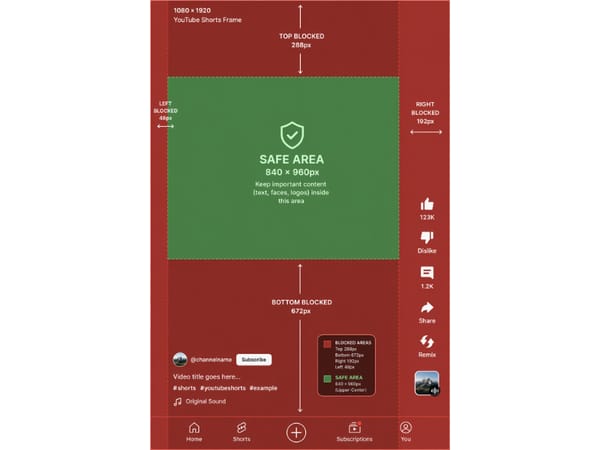
Safe area: 840 × 960 px, positioned in the upper-center of the frame (starting 288 px from the top, 48 px from the left).
These numbers come directly from Google's official vertical safe zone overlay (PNG) Download it and import it as a top layer in Premiere, DaVinci, CapCut, or Final Cut to see the blocked zones while you edit.
One caveat: the bottom margin in particular can grow on devices with a Dynamic Island or when a viewer expands the video description. The 672 px figure reflects the standard collapsed state. Design to this spec, then keep anything critical at least 100 px above that line for extra headroom.
Practical rules:
Keep all critical content inside the 840 × 960 px safe area. Logos, captions, and CTAs placed outside this zone risk being covered by UI elements.
Place subtitles above the 1,248 px mark (672 px from the bottom). The channel info bar plus music attribution is taller than most creators expect.
Don't center horizontally by eye. The right margin (192 px) is 4× wider than the left (48 px). Content that looks centered on a monitor sits behind the Like/Comment buttons on most phones.
Test on a physical phone before publishing. The safe zone shifts slightly on devices with notches or a Dynamic Island.
Set 9:16 in Your Editor
Shooting on your phone
Hold it vertically. Done. Your phone's camera app automatically shoots in 9:16 portrait orientation. This is the simplest way to get the right dimensions with zero setup.
CapCut
When creating a new project, select the "TikTok / Reels / Shorts" preset. CapCut defaults to 9:16 for this preset. No manual configuration needed.
Adobe Premiere Pro
Premiere Pro has no built-in Shorts preset. You must create a custom sequence:
Go to File → New → Sequence
Under Settings, set Frame Size to 1080 (width) × 1920 (height)
Name the sequence and click OK
Set this before importing your footage. Resizing a finished landscape sequence to vertical always crops content.
DaVinci Resolve
Open Project Settings (gear icon, bottom right)
Under Master Settings, set resolution to 1080 × 1920
Click Save
Your timeline will now work in 9:16 format.
Canva
Select the "Mobile Video" template when creating a new project. Canva's mobile video preset is pre-configured at 1080 × 1920. It works well for text-heavy or graphic-overlay Shorts without live footage.
Fix Existing Footage
If you have landscape (16:9) footage you want to turn into a Short, you have two options. Alternatively, if you're starting from scratch, an AI video generator lets you create vertical 9:16 video directly from a text prompt — no editing or reformatting required.
Crop: Select a 9:16 window within the 16:9 frame and cut everything outside it. Works well when the main subject is centered. Loses peripheral content.
Pan-and-scan: Use keyframes to move the 9:16 window left/right during the clip, following your subject as it moves. More work, but better results for active footage.
Generate from an image: If you have a still photo you want to animate into a Short, an image to video tool can output vertical 9:16 video directly.
What not to do: Never upload a landscape video with black bars on the sides, hoping YouTube will treat it as a Short. It won't. The black bars are baked into the file, and the aspect ratio of the full frame (including bars) is still wider than 9:16.
Cross-Platform Use
Good news for multi-platform creators: the same 1080 × 1920 file works on YouTube Shorts, TikTok, and Instagram Reels without modification.
| Platform | Best Size | Aspect Ratio | Notes |
|---|---|---|---|
| YouTube Shorts | 1080 x 1920 px | 9:16 | Most important right-side safe zone |
| Instagram Reels | 1080 x 1920 px | 9:16 | Feed and grid crops matter |
| TikTok | 1080 x 1920 px | 9:16 | Bottom caption overlap can be larger |
For Instagram-specific dimensions and cover crops, see our Instagram Reel size guide.
All three platforms use 9:16 at 1080 × 1920 as their standard vertical video format. Create once, export once, post everywhere.
The only caveat is safe zone alignment. YouTube's top UI is slightly larger than TikTok's, so if you're optimizing a single file for both platforms, design around YouTube's margins — they're the more restrictive of the two for top-of-frame content. Once your ratio is locked in, you can add platform-native flair with video effects without touching the dimensions.
FAQ
Key Takeaways
9:16 is the only ratio that gets your video classified as a Short. Landscape uploads go to the regular feed. Square works but performs worse.
1080 × 1920 px is the target resolution. Minimum is 720 × 1280. 4K wastes time with no visible benefit.
The safe zone is not optional. UI buttons cover the top, bottom, and right edge of the Shorts player. Keep all important content in the center 60% of the frame.
Set dimensions before editing. Changing aspect ratio after editing crops your content. Build in 9:16 from the start.
The same file works on TikTok and Instagram Reels. Create once in 9:16 at 1080 × 1920 and you're done for all three platforms.
Optimizing your YouTube presence? Pair your Shorts with a matching YouTube banner and channel profile picture to complete the look.