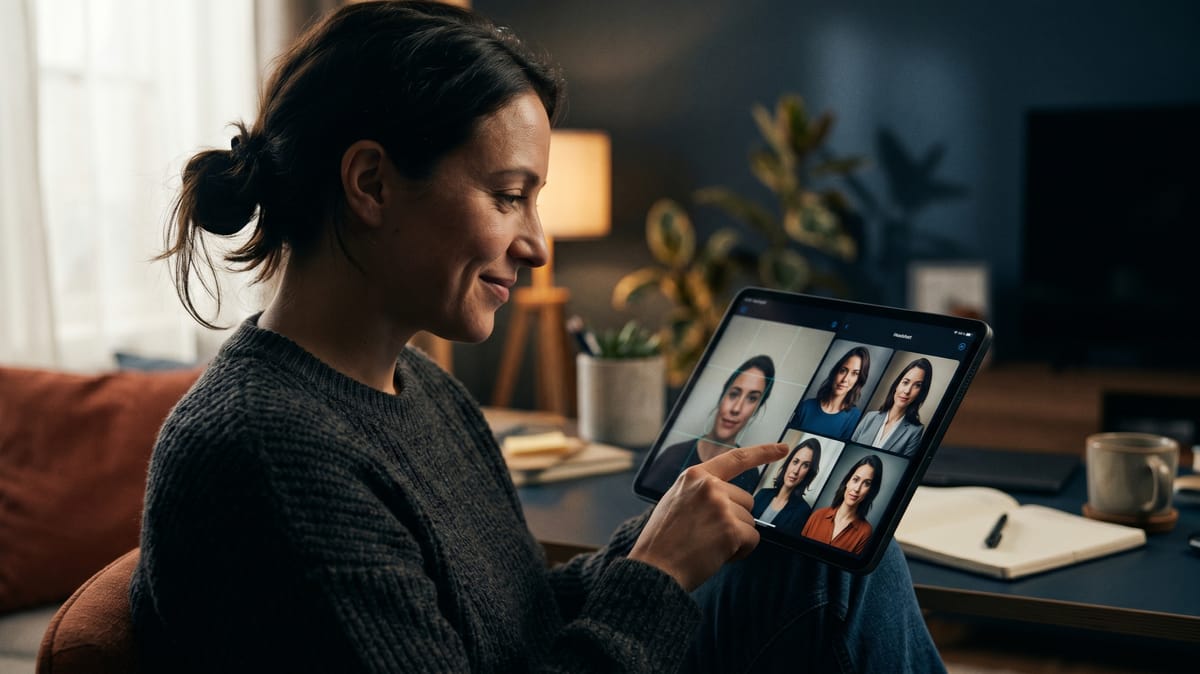
Din LinkedIn-bild är det första en rekryterare ser, långt innan de läser ett enda ord i din profil. En suddig selfie eller ett gammalt porträtt från 2019 skickar helt fel signal redan innan du hunnit säga något.
Förr behövde man boka fotograf, avsätta en halv dag och lägga ut 2 000–5 000 kronor. Nu tar det 30 sekunder.
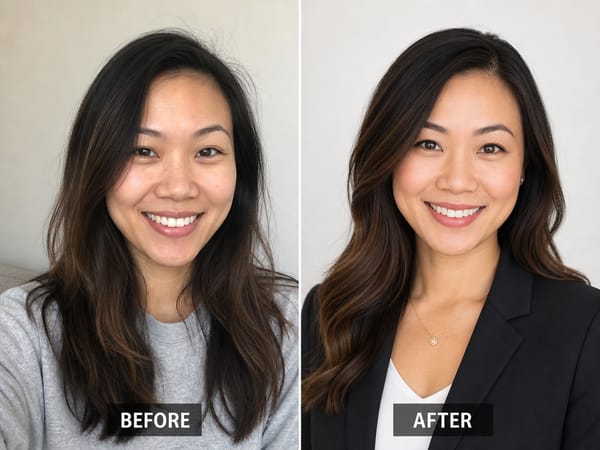
AI-porträttgeneratorer har gjort enorma framsteg under 2025–2026. De bästa verktygen levererar nu bilder som är riktigt svåra att skilja från riktiga studioporträtt – skarp belysning, rena bakgrunder, naturlig hudstruktur.
I den här guiden får du exakta stegen, inklusive det vanligaste felet folk gör – och som avgör om resultatet blir proffsigt eller uppenbart AI-skapad.
Varför ser AI-porträtt ibland fejk ut?
Innan vi går in på stegen, en snabb förklaring till varför vissa AI-porträtt ser riktigt bra ut – och andra ser ut som en spelfigur med ditt ansikte.
Resultatet blir aldrig bättre än ditt originalfoto. Alla AI-porträttverktyg – oavsett hur avancerade – bygger upp ditt ansikte utifrån de foton du laddar upp. Ger du AI:n en mörk, filtrerad selfie tagen i en stimmig bar måste den gissa sig fram till många detaljer. Och de där gissningarna syns.
Det andra vanliga misstaget är överdriven utjämning. Billiga verktyg slätar ut varje por och skugga tills du ser ut som en putsad marmorskulptur. Det kan låta lockande – tills du jämför med ett riktigt foto på dig själv. Rekryterare reagerar. Kunder reagerar. Målet är inte perfektion – utan en professionell version av dig själv.
Kom ihåg båda dessa saker när du går igenom stegen nedan.
Steg 1 – Originalfotot
Detta är det viktigaste steget. De flesta guider stressar förbi det. Gör inte det.
Använd bakre kameran, inte selfiekameran. Främre kameror har vidvinkellinser som förvränger ansiktsproportionerna – näsan ser större ut, ansiktet rundare. Bakre kameran ger rätt proportioner. Sätt en 3 sekunders timer och luta mobilen mot något stabilt.
Ställ dig vid ett fönster. Naturligt ljus från ett fönster är det absolut bästa du kan ha hemma. Ställ dig med ansiktet mot fönstret – inte med fönstret bakom dig (då blir du en silhuett), och undvik direkt ljus ovanifrån, eftersom det ger hårda skuggor under ögon och näsa. Molnigt dagsljus är perfekt; stark sol kan bli för hård.
Välj en neutral bakgrund. En vit eller ljusgrå vägg är bäst. AI:n ska fokusera på ditt ansikte. Stökiga rum, bokhyllor eller mönstrade väggar distraherar modellen och kan påverka resultatet.
Håll det enkelt. Inga hattar, inga solglasögon, inga kraftiga filter innan du laddar upp. Inga gruppbilder – någonsin. Om någon annan syns på ditt foto riskerar AI:n att blanda in deras drag i din bild.
Rama in dig själv från axlarna och upp, med ansiktet som fyller mest av bilden. Titta rakt in i kameran. Ett neutralt eller svagt leende fungerar bra i professionella sammanhang.
Foto rakt framifrån krävs. AI:n behöver en tydlig, rak vy av ditt ansikte. Om du även har en sidoprofil (även en avslappnad 45-graders vinkel), ladda gärna upp den också. Det ger modellen mer att arbeta med och förbättrar ofta träffsäkerheten.
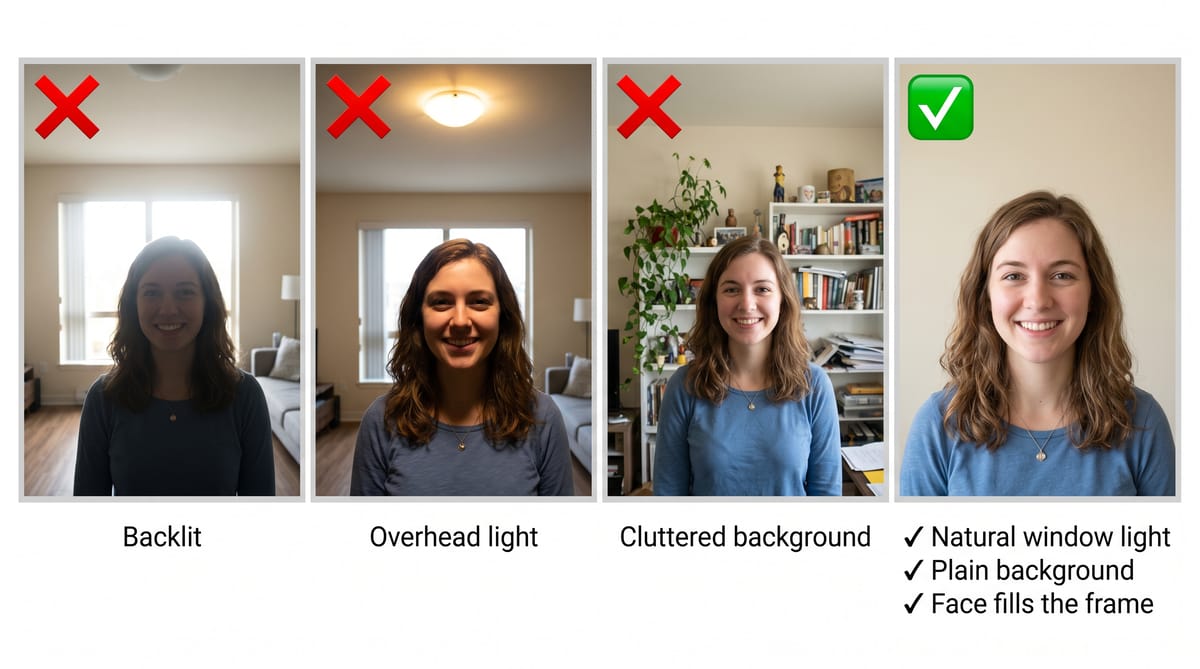
Ett bra porträtt rakt framifrån i bra ljus ger ett stabilt resultat. Lägg till en sidovinkel så blir det ännu bättre.
Steg 2 – Välj verktyg
AI-porträttgeneratorer brukar delas in i två huvudkategorier.
Modellträningsverktyg ber dig ladda upp 10–20 foton och tränar sedan en egen AI-modell på just ditt ansikte. Fördelen är mer konsekvens mellan flera bilder. Nackdelen är att det tar tid och kräver flera bra foton.
Enkelbildsverktyg skapar resultat från bara en bild, oftast på under en minut. De är snabbare och enklare – och de bästa matchar kvaliteten från modellträning.
För de flesta – särskilt dig som bara behöver ett schysst LinkedIn-porträtt eller några professionella bilder – räcker ett enkelbildsverktyg gott och väl. Några saker att känna till innan du väljer:
Ansiktslikhet. Somakes modell är särskilt optimerad för att bevara just dina ansiktsdrag – samma form, samma ögonfärg, samma proportioner. Det är här många verktyg fallerar. Billiga generatorer gör ett "proffsigt" ansikte, men det är inte du.
Inga fel på detaljer eller kropp. Vanliga AI-fel är till exempel kragar som inte möts, kavajslag som ser konstiga ut eller öron som känns aviga. Somake återger kläder och detaljer korrekt – proffsiga kläder, korrekt återgivna, inte bara uppskattade.
Klädstil och utseende. Standardstilar använder professionella kläder som passar olika ändamål – kavaj för företagsmiljöer, smart casual för kreativa yrken. Passar inte grundstilen din personliga profil? Ingen fara, det finns flera alternativ att välja mellan.
Upplösning. Bilder levereras i 1080p – skarpa och redo för LinkedIn, mejlsignatur och profilsidan på hemsidan. Behöver du ännu högre upplösning för tryck eller storformat? Somakes inbyggda fotoförstoring kan skala upp till 2K, 4K eller 8K utan att du behöver göra om genereringen.
Pris och integritet. Priserna börjar på 19,90 USD/månad utan dolda avgifter – det du ser är det du betalar. När det gäller integritet: Foton hanteras via krypterade förbindelser och används aldrig för att träna AI-modeller. Genererade porträtt lagras i 30 dagar för gratiskonton och 180 dagar för betalande användare – ladda ner det du vill spara innan dess. Nya användare får fria krediter för att testa innan de bestämmer sig.
Steg 3 – Välj stil
Stilvalet är viktigare än vad man tror. Ett porträtt för en kreativ chef ser fel ut i en bostadsannons. Några tumregler:
LinkedIn och företagsprofiler: Satsa på en ren, neutral bakgrund – ljusgrå eller vit. Mörk kavaj eller skjorta för män; kavaj eller proffsig topp för kvinnor. Ljuset bör kännas kontrollerat, inte dramatiskt. Du vill förmedla "kompetent och trevlig", inte "VD på ett cyberpunk-startup".
Bostadsförmedling och kundrelaterade roller: Lite varmare ljussättning och ett öppnare uttryck fungerar bäst här. Du säljer förtroende och tillgänglighet – inte bara auktoritet.
Läkare, advokater och expertkataloger: Rakt och auktoritativt. Neutral bakgrund, formella kläder, direkt ögonkontakt.
Team och företagssidor: Här är konsekvens viktigare än den enskildes preferens. Om alla på "Om oss"-sidan har olika bakgrunder, ljus och färgton ser det ut som om företaget är ihopplockat från olika tider. Använd samma stilinställningar för hela teamet.
Somake täcker alla dessa scenarier – individer, kundroller och ett team-porträttverktyg för att skapa många bilder åt gången över flera orter.
Steg 4 – Granska resultatet
Innan du laddar ner och lägger upp på LinkedIn – gör en snabb koll:
Lika dig? Inte en yngre, slätare, idealiserad version – utan du. Om ansiktsformen har ändrats märkbart eller din ögonfärg är fel har något blivit fel i genereringen. Ta ett nytt originalfoto med bättre ljus och testa igen.
Konsistent ljus? Ljuset ska tydligt komma från en riktning och matcha bakgrunden. Ett ansikte upplyst från vänster mot en bakgrund med ljus från höger är en typisk AI-varningssignal.
Några konstiga detaljer? Kolla öron, krage och hårfäste – det är här AI-verktyg oftast missar. Asymmetriska öron, kragar som inte möts, hår som smälter in i bakgrunden. Ett bra verktyg fixar dessa. Ser du tydliga fel här är det verktyget, inte ditt foto, som är boven.
Skulle andra känna igen dig direkt? Det är den riktiga testen. Använder du ett porträtt där du ser tio år yngre eller tio kilo lättare ut än i verkligheten, kommer alla att reagera på skillnaden när ni ses.
Om resultatet inte känns rätt beror det nästan alltid på originalfotot – mer ljus, enklare bakgrund, bättre inramning. Gör om med ett bättre grundfoto innan du byter verktyg.
Vanliga misstag som sabbar AI-porträtt
Att ladda upp filtrerade bilder. Instagram- och Snapchat-filter ändrar dina ansiktsdrag – breddar ögonen, smalnar av ansiktet, slätar ut huden. AI:n tror att detta är dina riktiga drag och bygger vidare på den förvrängningen. Ladda alltid upp ofiltrerade, originalbilder.
Att använda ett gruppfoto som original. Även om du klipper bort andra personer innan du laddar upp kan AI:n ibland snappa upp detaljer i kanten och blanda in dem i din bild. Använd ett foto där bara du är med.
Att tro att gratisverktyg ger proffsiga resultat. Gratistjänster för AI-porträtt skapar ett generiskt proffsansikte – inte ditt ansikte. Tekniken som verkligen bevarar identitet kräver beräkningskraft som gratisnivåer inte täcker. Vill du ha användbara resultat – räkna med 200–400 kronor för ett bra verktyg.
Att inte kolla återbetalningspolicyn. Vissa tjänster erbjuder full återbetalning om du inte är nöjd, andra erbjuder delåterbetalning, och vissa inga alls. Ta reda på detta innan du betalar. Somake erbjuder återbetalning inom 3 dagar från köp, så länge du använt färre än 50 krediter.
Ett foto som inte visar hur du faktiskt ser ut. Ett porträtt optimerat för hur du såg ut för fem år sedan, eller där AI:n har gjort dig yngre än du är, skapar ett pinsamt "glapp" när du träffar folk på riktigt. Håll det ärligt.
Bortom LinkedIn: andra användningsområden
Samma upplägg funkar för vilket professionellt sammanhang som helst där bilden blir första intrycket.
Team: Istället för att försöka samordna fotografering för en spridd grupp – olika städer, olika scheman – tar alla ett originalfoto hemma och gör om det i samma stil. Resultatet? En enhetlig lagbild utan att någon behöver resa någonstans.
Bostadsmäklare: Annonser, visitkort och agenturer kräver alla proffsiga bilder. Med AI har du dem på några sekunder, till en bråkdel av kostnaden av en riktigt fotosession.
Livsporträtt: Tekniken funkar för mer än bara proffsiga bilder. Somakes porträttverktyg täcker även gravidfotografering, bröllop, nyfödda och familjebilder – studioresultat från vanliga vardagsfoton.
Sammanfattning
Foto rakt framifrån krävs. Lägg till en sidobild om du kan – det förbättrar träffsäkerheten.
Ditt originalfoto avgör allt. Bakre kamera, naturligt fönsterljus, enkel bakgrund, inga filter.
Enkelbildsverktyg är snabba nog för de flesta proffsbehov 2026 – du slipper leta fram 20 selfies.
Stilen ska matcha situationen – företags-, mäklar- och sjukvårdsporträtt har olika "regelverk".
Kolla likhet, detaljer och ljus innan du publicerar. Upptäcker du något knas? Fixa originalbilden först.
Ha koll på priset och vad som händer med dina bilder. Tydliga priser och automatisk radering är ett måste.