Empty The Room
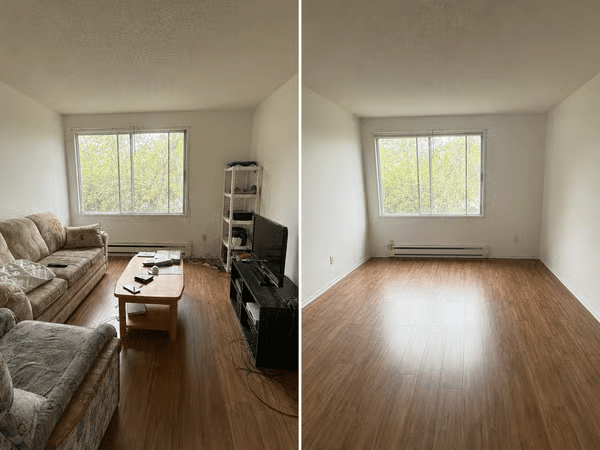
Use empty room AI to strip furniture, appliances, and decor from any room photo. Get a clean, bare space in seconds — no editing skills needed.
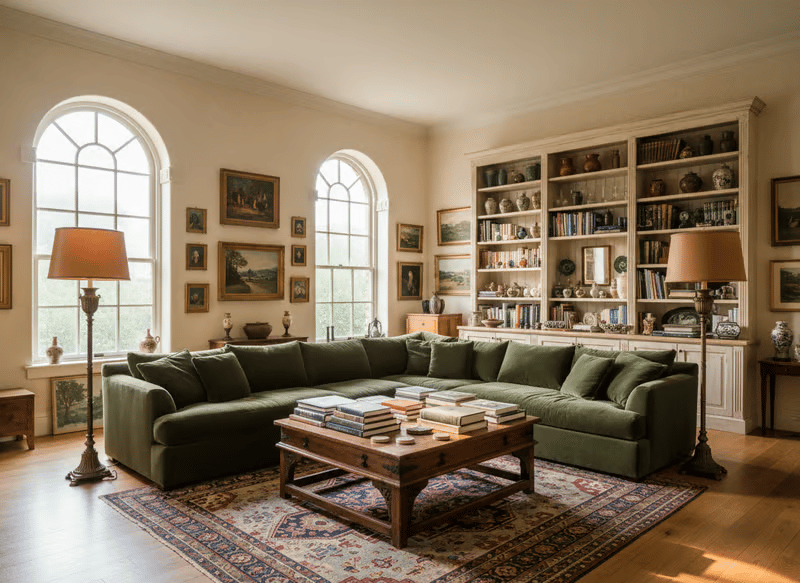
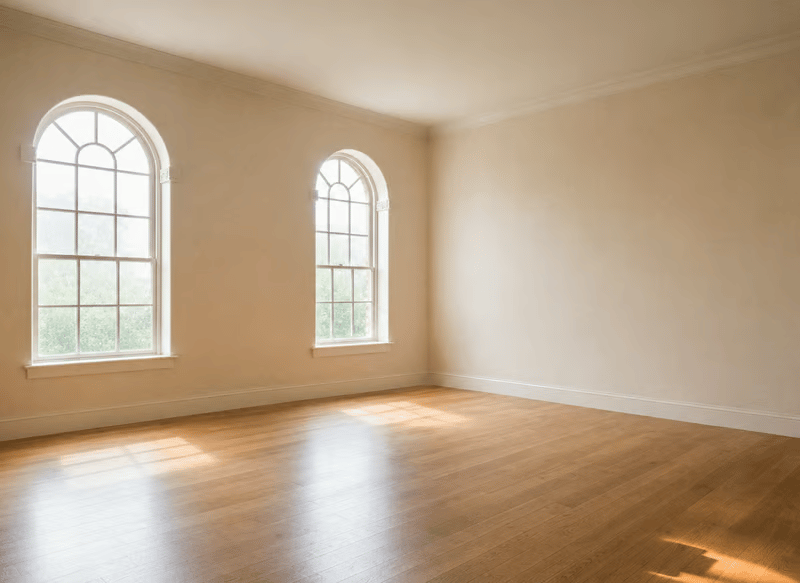
Create an Empty-Room Concept
Empty the Room clears multiple categories of objects in one generation, giving you a simpler starting point for redesign, renovation, or virtual staging.
To explore a new style after clearing the room, continue with Interior Design.
Common Uses
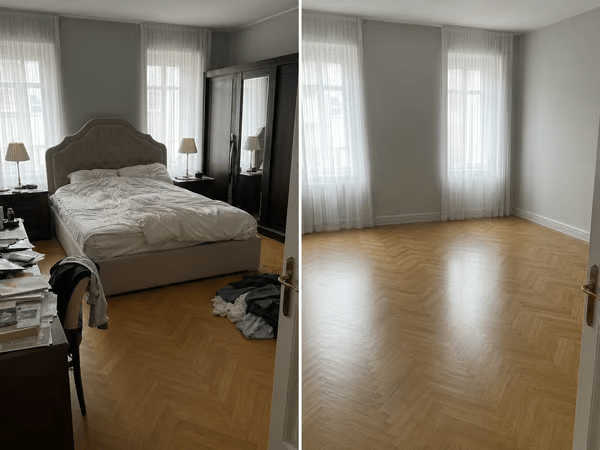
Start a Redesign
Remove existing furniture so you can focus on the room’s layout and explore a different interior direction.
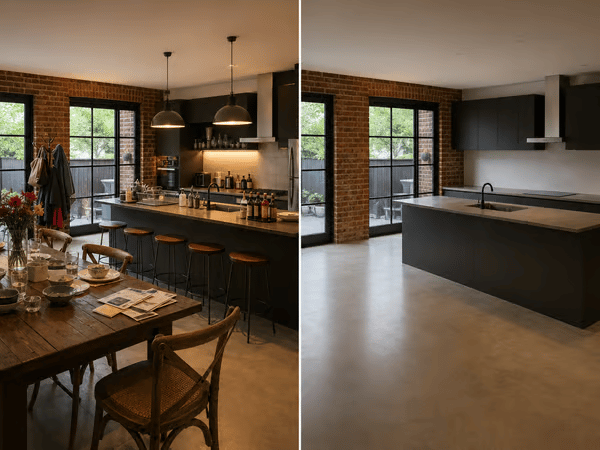
Prepare for Virtual Staging
Create an empty-room starting image, then add listing-ready furniture with Virtual Staging.
Plan New Furniture
Clear the current furnishings before testing a new layout or design concept.
How to Use Empty the Room
Upload a clear photo showing most of the room.
Choose Fast or Pro.
Review the pre-filled Prompt.
Name anything that should remain, such as cabinetry or overhead lighting.
Generate and inspect reconstructed surfaces and fixtures.
Example prompt:
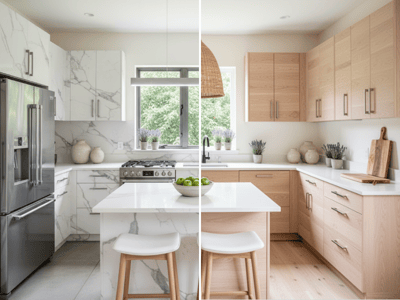
Remove movable furniture and decorations. Keep the kitchen counters, built-in cabinetry, and overhead lighting.
Key Features
Whole-Room Removal
Remove multiple types of furniture and décor without selecting each object individually.
Editable Prompt
Keep fixed fixtures, remove only movable furniture, or name specific objects to remove.
Supports Common Interiors
Use the same workflow for living rooms, bedrooms, kitchens, bathrooms, offices, and commercial spaces.